Specification and Compatibility Table
| Model | Resolution | Wi-Fi Band | Pan/Tilt | 2-Way Audio | Night Vision | Local Storage | Treat Dispenser | Price |
|---|---|---|---|---|---|---|---|---|
| PETCPU 360 Pet Camera | Not stated | 5G and 2.4G | 360 degree | Yes | Yes | Not stated | Yes | $129.99 |
| Tapo C201 | 1080P | Not stated | Pan/Tilt | Yes | Yes | Yes (local, optional cloud) | No | $17.96 |
| aosu 2K Indoor | 2K | 2.4GHz | 360 degree | Yes (One-Touch Call) | Yes (IR) | Not stated | No | $32.99 |
| Tapo C211 (2-Pack) | 2K | Not stated | Pan/Tilt | Yes | Yes | Yes (local, optional cloud) | No | $44.99 |
| Tapo C200 | 1080P | Not stated | Pan/Tilt | Yes | Yes | Yes (SD card and cloud) | No | $21.99 |
| Kasa EC70 | 1080P | Not stated | Pan/Tilt | Yes | Yes | Yes (local, optional cloud) | No | $25.99 |
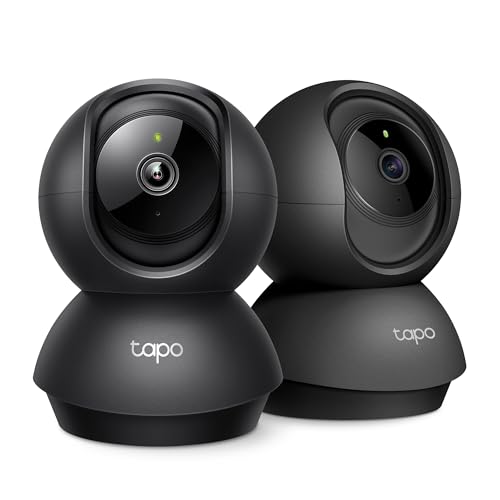
- 【2K High Definition】Capture every detail inside your home with crystal-clear 2K high definition video with this indoor security camera. Easily see what your baby is holding or
- 【Up, Down, All Around】This Pan/Tilt IP camera see everything across an entire room or walkway with the 360° horizontal and 114° vertical range pan/tilt field of view
The Short Answer
A reliable pet monitor setup runs in this order: mount the camera at the right height and angle, connect it to the correct Wi-Fi band, confirm the live feed and two-way audio work from outside your home network, then set motion zones and alerts so you are not buried in notifications. The two steps people skip are checking the Wi-Fi band (many indoor pet cameras only join 2.4GHz) and testing the feed on cellular data rather than home Wi-Fi. Get those two right and most "it worked yesterday" problems never appear.
Last Updated: July 28, 2026
Before You Start: What a Correct Setup Needs
A pet monitor is only as stable as the three things behind it: power, network, and placement. If any of those is wrong, no amount of app fiddling fixes it. Sort them before you mount anything.
Power that stays on
Every camera in the common indoor pan/tilt class is wired, meaning it needs a permanent USB power source, not a battery you top up. Pick an outlet that is never switched off at the wall, and route the cable so a curious cat or dog cannot bat it loose. A monitor that reboots every time someone flips a light switch is worse than no monitor.
The right Wi-Fi band
This is the single most common setup failure. Several of these cameras connect only over 2.4GHz Wi-Fi. The aosu 2K, for example, is specified for 2.4GHz Wi-Fi. The PETCPU treat-dispensing camera supports both 5G and 2.4G. If your phone is sitting on a 5GHz network during pairing, a 2.4GHz-only camera will refuse to join, and the app rarely tells you why.
A placement that sees the whole room
Pan/tilt models like the Tapo C200, Tapo C201, Kasa EC70, and Tapo C211 let you sweep the room remotely, but they still need a starting position that covers the door, the food bowl, and wherever your pet actually sleeps. Corner placement, four to six feet up, usually captures the most floor without blind spots.
The Step-by-Step Setup Checklist
Work through these in order. Each step has the gotcha that catches people at that stage.
- Unbox and power the camera on a table first. Do the entire pairing while the camera is sitting next to you, not while it is already screwed to the ceiling. Gotcha: if pairing fails, you do not want to be on a ladder to reset it.
- Put your phone on the 2.4GHz network. If your router broadcasts one combined network name, temporarily disable the 5GHz band or use the router's dedicated 2.4GHz SSID. Gotcha: a combined-band network can hand your phone to 5GHz mid-setup, and a 2.4GHz-only camera then never appears.
- Install the manufacturer app and create the account before pairing. Tapo and Kasa cameras use their own apps. Gotcha: some cameras will not finish setup until the account email is verified, so check your inbox first.
- Scan the QR or pairing code shown by the app with the camera. Hold the phone screen eight to twelve inches from the lens. Gotcha: night vision and glare can wash out the code; do this in normal room light.
- Enter your Wi-Fi password exactly, watching for autocorrect. Gotcha: mobile keyboards capitalize the first character of a password field, silently breaking a case-sensitive key.
- Wait for the firmware update the app pushes on first connect. Do not unplug during this. Gotcha: interrupting a firmware update is the fastest way to brick a new camera.
- Confirm the live feed, then test two-way audio. Speak through the app and listen for it out of the camera. Every model here supports 2-way audio. Gotcha: phone silent mode mutes the return audio and makes you think the mic is dead.
- Set up storage. Insert a microSD card if you want subscription-free local recording; the Tapo and Kasa models support local storage, with cloud optional. Gotcha: cards must usually be formatted inside the app before recording starts.
- Define motion detection zones and a sensitivity level. Mask off windows and busy hallways. Gotcha: default sensitivity plus an unmasked window equals hundreds of alerts from passing cars and shadows.
- Mount the camera in its final spot and re-check the framing. Pan and tilt it remotely to confirm coverage. Gotcha: the view from the table is not the view from the shelf; always re-frame after mounting.
- Leave the house and open the feed on cellular data. This is the real test. Gotcha: everything works on home Wi-Fi; the point of a monitor is that it works when you are away, so verify it remotely before you trust it.
What Goes Wrong, and What to Do About It
The camera will not join Wi-Fi
Symptom: pairing spins and times out, or the app says "device not found." Almost always a band mismatch or a mistyped password. Force your phone onto 2.4GHz, retype the password with autocorrect off, and move the camera within a few feet of the router for the initial join. You can relocate it afterward.
Live feed is laggy or keeps buffering
Symptom: the video freezes, stutters, or drops to a black frame. This is usually weak Wi-Fi at the camera's location or too many devices on the 2.4GHz band. Check signal strength in the app, move the router or camera closer, and lower the streaming resolution if the app allows. A 2K stream such as the aosu 2K or Tapo C211 needs more bandwidth than a 1080P stream like the Tapo C200 or Kasa EC70.
Flooded with false motion alerts
Symptom: your phone buzzes constantly with nothing happening. Motion sensitivity is too high or your zones include windows, TVs, or heat vents. Tighten the detection zone to the area your pet uses and drop sensitivity a notch at a time until only real movement triggers it.
Night footage is a white glare or pure black
Symptom: the night vision image is blown out or shows nothing. IR night vision reflects hard off nearby walls, glass, and mirrors. Angle the camera away from reflective surfaces and keep it back from the wall it is mounted on. All the cameras here include night vision, but placement decides whether it is usable.
Two-way audio only works one direction
Symptom: you hear your pet but they cannot hear you, or the reverse. Check that the app has microphone permission on your phone and that phone silent mode is off. If only the camera's outbound audio fails, the speaker volume in the app is often set to zero.
Treat dispenser jams or misses
Symptom: on the PETCPU treat-tossing camera, treats do not launch or get stuck. Use dry, round treats close to the size the hopper expects, do not overfill, and keep the mechanism clear of dust. Oddly shaped or soft treats are the usual cause of a jam.
Where a cell reads "Not stated," the manufacturer data provided did not specify that spec. Confirm it on the product page before buying if it matters to you.
When the Fix Is a New One
Sometimes the setup is fine and the hardware is the limit. Replace rather than fight it when you see these honest signals: the camera cannot hold a connection no matter where you place it, the resolution is too low to tell your pets apart in the dark, or the feature you actually need was never on the device. Here are three directions worth considering, described by what each changes for this task.
You need to interact, not just watch
If checking in is not enough and you want to reward or call your pet over, a camera with a treat dispenser changes the whole use case. The PETCPU 360 Pet Camera adds remote treat tossing, two-way audio, and 360-degree coverage, and it supports both 5G and 2.4G Wi-Fi so band mismatch is less likely to block setup. Check Price on Amazon
You want sharper detail and are covering more than one room
If a 1080P feed is not crisp enough or you have two spaces to watch, stepping up to 2K and buying in a pair solves both at once. The Tapo C211 2-Pack delivers 2K resolution, pan and tilt, two-way audio, and subscription-free local storage. Check Price on Amazon
You want the simplest possible reliable starting point
If your last camera was overcomplicated and you just want a dependable pan/tilt feed with local storage and no subscription, a straightforward wired model is the easier fix. The Tapo C201 offers 1080P, pan and tilt, motion detection, two-way audio, and local storage at the low end of this price range. Check Price on Amazon
Before replacing any device for a fault, it is worth checking whether a known issue or recall exists on it through the CPSC recalls database.
FAQ
Why won't my pet camera connect to Wi-Fi?
The most common cause is a band mismatch. Many indoor cameras join only 2.4GHz Wi-Fi, and the aosu 2K here is specified for 2.4GHz. Put your phone on the 2.4GHz network during pairing, move the camera near the router for the first connection, and retype the password with autocorrect disabled.
Do I need a subscription to use a pet monitor?
Not necessarily. Several models here support subscription-free local storage on a microSD card, including the Tapo C200, Tapo C201, Tapo C211, and Kasa EC70, with cloud offered as an option rather than a requirement. Insert and format a card in the app to record without any monthly fee.
Where should I place a pet camera?
Mount it in a room corner, roughly four to six feet up, angled to cover the door, the food area, and your pet's usual resting spot. With a pan/tilt model you can adjust the view remotely, but keep the lens away from windows and mirrors to avoid night-vision glare and false motion alerts.
How do I stop getting so many motion alerts?
Tighten the motion detection zone to only the area your pet uses and lower sensitivity one step at a time. Mask out windows, TVs, and vents, since moving light and heat are frequent false triggers. Test the new settings for a day before trusting them.
Can I talk to my pet through the camera?
Yes. Every model listed here supports two-way audio, and the aosu 2K includes a One-Touch Call feature. If your pet cannot hear you, confirm the app has microphone permission and that your phone is not in silent mode, which can mute the return audio.
How do I know my setup actually works when I'm away?
Leave home, disconnect your phone from Wi-Fi, and open the live feed on cellular data. If the video, two-way audio, and alerts all work over cellular, your setup is genuinely remote-ready. Testing only on home Wi-Fi hides the exact failures that matter when you are out.